

Is your POS touchscreen responding on the wrong display?
This can happen when a Touch Screen Payment Terminal is connected to two or more displays.
For example, you touch the cashier screen, but the cursor or touch response appears on the customer display.
The touchscreen may be working normally.
The problem may simply be that Windows has assigned the touch input to the wrong display.
In this guide, I'll show you how to check the display setup and assign the POS touchscreen to the correct screen.
Why Is My POS Touchscreen Controlling the Wrong Display?
A dual-screen POS usually has two separate displays.
The cashier display is used to operate the POS software.
The customer display shows order details, prices, promotions, or other customer-facing information.
In some setups, only the cashier display supports touch.
Windows needs to know which physical display should receive input from that touchscreen.
If the touch input is mapped incorrectly, you may see this:
The POS software is on the correct screen.
The touchscreen responds normally.
But the touch response appears on another display.
This is different from a POS application opening on the wrong screen.
Moving the application window to another monitor does not necessarily change the touchscreen mapping.
That's an important distinction when troubleshooting touch screen tills for small businesses.
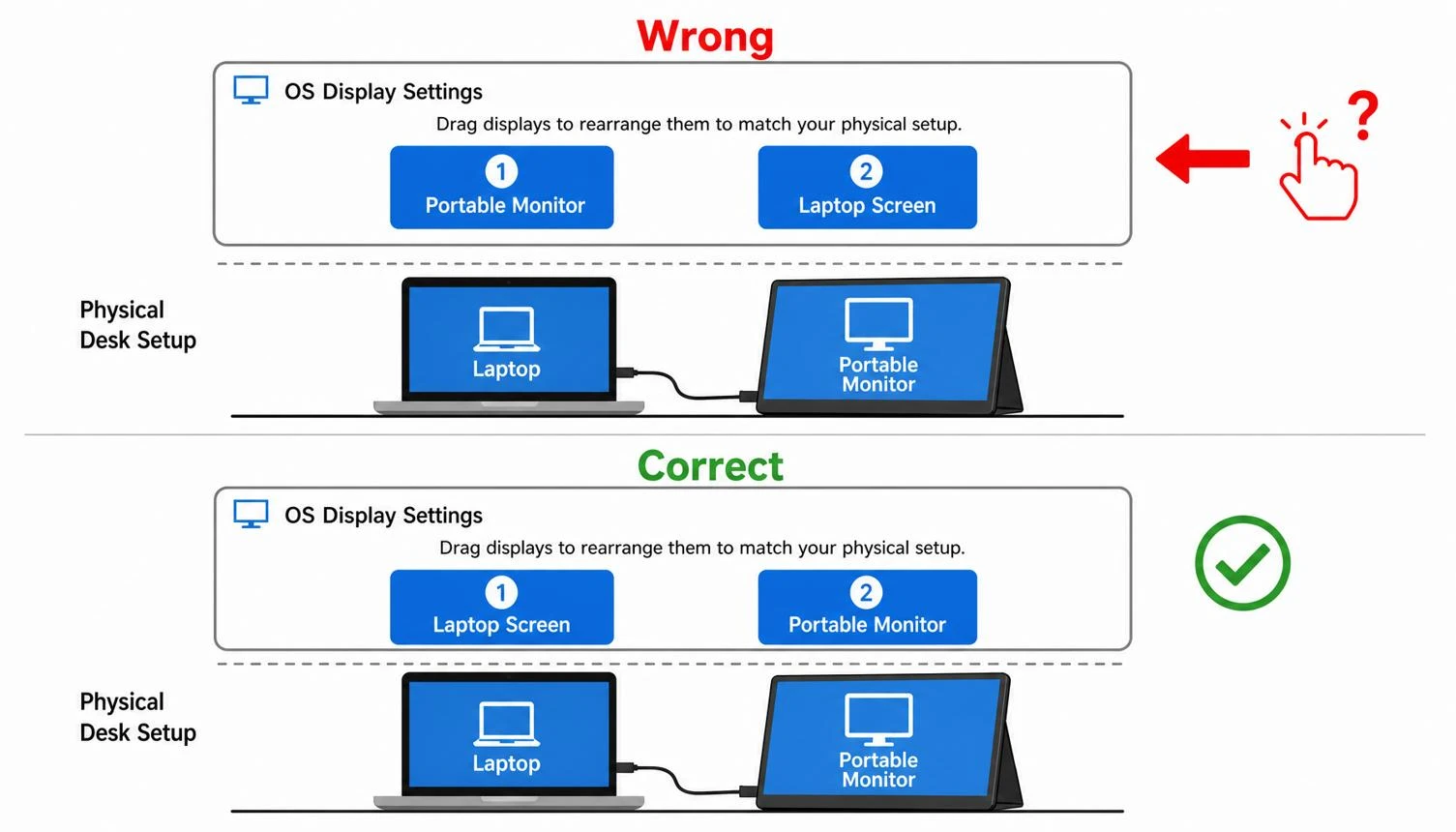
How Does Windows Assign a Touchscreen to a Display?
Windows treats the display configuration and touch input mapping as related but separate settings.
First, Windows needs to recognize the connected displays.
Then, the touchscreen input needs to be associated with the correct physical display.
For example:
Cashier display → touchscreen input
Customer display → customer-facing content
If these connections are not set correctly, touching one screen can produce a response on another.
For more information about setting up multiple displays, you can also check Sunany's dual-screen POS machines here.
How to Assign a POS Touchscreen to the Correct Display
If you're using a standard Windows touch configuration, start with these steps.
1. Check Both Displays
Connect both displays to the POS terminal.
Then go to:
Settings → System → Display
Make sure Windows recognizes both screens.
You can select Identify to see which number Windows has assigned to each physical display.
Check that the screen numbers match your actual setup.
For example:
Display 1 = cashier touchscreen
Display 2 = customer display
The exact numbering can be different on your system.
2. Select "Extend These Displays"
Under the multiple-display settings, select:
Extend these displays
This allows Windows to treat the screens as separate display areas.
It's commonly used for dual-screen POS systems.
The cashier can use one screen for the POS application.
The customer can see separate content on the other screen.
However, extending the displays does not automatically fix touch mapping.
If touch input is still going to the wrong screen, continue with the next steps.
3. Open Tablet PC Settings
Open the Windows Control Panel.
Then look for:
Tablet PC Settings
Depending on your Windows configuration, you can also search for it directly.
This setting is used to configure pen and touch input across supported display setups.
4. Select "Setup"
In Tablet PC Settings, select:
Setup
Windows will show an on-screen prompt.
The prompt may first appear on a display that does not support touch.
If that happens, follow the instructions on the screen.
You may need to press Enter to move the prompt to the next display.
Continue until the prompt appears on the physical touchscreen you want to use.
5. Touch the Correct Display
When the prompt appears on the correct POS touchscreen, touch the screen as instructed.
This tells Windows which display should receive input from that touchscreen.
For example, if your cashier display is the only touchscreen, Windows should associate the touch input with that display.
After completing the setup, test the touchscreen again.
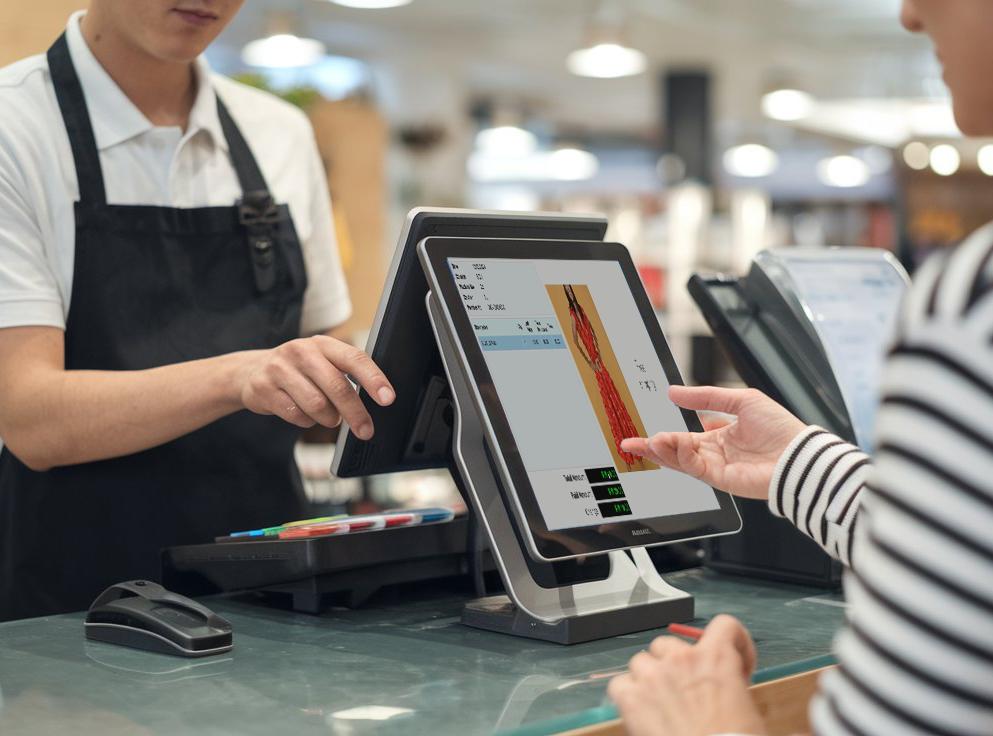
Display Arrangement vs. Touchscreen Mapping
These two settings are easy to confuse.
Display arrangement determines where Windows places the monitors.
For example, you might have the customer display positioned to the right of the cashier display.
Touchscreen mapping determines which display receives input from the physical touchscreen.
Think of it this way:
Display arrangement = Where is the screen?
Touchscreen mapping = Which screen receives the touch?
Changing the monitor position may fix a mouse or window-placement issue.
It may not fix a touchscreen mapping problem.
If you're also configuring your POS display hardware, POS system can provide additional information about display options.
A Simple Example
Imagine you're setting up a restaurant POS with two screens.
The cashier display is directly in front of the employee.
The customer display faces the other side of the counter.
The POS application is already showing correctly on the cashier screen.
But when the cashier taps "Pay", the touch response appears on the customer display.
At first, it may look like the POS software is broken.
It's not necessarily a software problem.
The more likely issue is that Windows has associated the touchscreen input with the wrong display.
After checking Tablet PC Settings → Setup and assigning the touch input to the cashier display, the touchscreen should respond on the correct screen.
This is why it's worth checking the Windows touch mapping before changing the POS application itself.
What If Your POS Uses a Separate Touchscreen Driver?
Not every POS touchscreen uses exactly the same configuration.
Some terminals use a dedicated touch controller or manufacturer-specific software.
The software may provide settings for:
Touchscreen mapping
Touch calibration
Device identification
Multiple touch displays
If your terminal includes a dedicated touchscreen utility, follow the instructions for that hardware.
Don't assume that the standard Windows setup will work for every device.
What If Windows Does Not Recognize the Touchscreen?
If Windows does not recognize the touchscreen at all, changing the display mapping may not solve the problem.
Check these items first:
Make sure Windows detects both displays.
Open Device Manager.
Check whether the touchscreen or touch controller is listed.
Confirm that the correct driver is installed.
Check the USB or other touch-data connection.
Make sure the display and touch controller are connected correctly.
One important point:
Video and touch signals may use separate connections.
A screen can display an image normally even if its touch connection is not working.
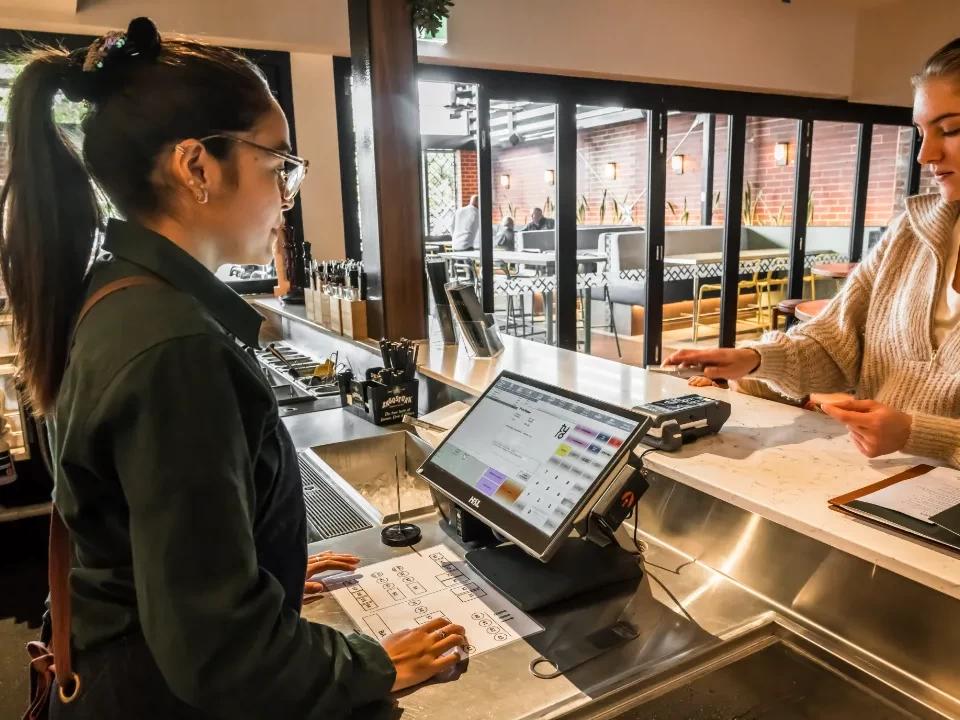
How Do I Test the Touchscreen After Setup?
Don't stop after confirming that the Windows desktop responds correctly.
Test the actual POS application.
I recommend checking:
Touch different areas of the cashier screen.
Confirm that the response appears in the correct location.
Open the POS application.
Test common buttons and functions.
Test product selection and checkout.
Confirm that the customer display still works correctly.
Restart the POS terminal.
Test the touchscreen again.
The goal is simple:
The cashier should be able to touch the designated screen and control the POS application on that same screen.
FAQ
1. Why does my POS touchscreen work but respond on the wrong monitor?
The touchscreen itself may be working correctly.
The problem can be caused by incorrect touch input mapping in Windows.
Check Tablet PC Settings → Setup and confirm that the touchscreen is assigned to the intended display.
2. Does changing the Windows display arrangement fix touch mapping?
Not necessarily.
Display arrangement controls how Windows positions the monitors.
Touch mapping determines which display receives input from the touchscreen.
They are related but separate settings.
3.Can I use two touchscreens with one POS terminal?
It depends on the hardware, drivers, and software configuration.
If you need multiple touch displays, confirm that the POS terminal and its touch controller support the required setup.